FAQs
Find answers to the most frequently asked questions (FAQs) about multi-factor authentication, learning, events and accreditations.
Multi-factor authentication
Get help with how to verify your My LS account using multi-factor authentication.
Multi-factor authentication adds a layer of protection to the sign-in process.
To gain access to a digital resource, users provide additional pieces of evidence to verify their identity.
Authentication protects against cyber criminals by making sure that users are who they say they are.
Multi-factor authentication is extremely effective at protecting data from being stolen.
Microsoft has reported that it can prevent over 99.9% of account compromise attacks.
Enabling multi-factor authentication is one of the most effective actions we can take to protect your personal and corporate data.
You’ll need to provide a verification method as well as your username and password to log into My LS.
You can choose to verify your My LS account by:
- receiving an SMS text message on your mobile phone
- requesting a phone call on a landline or mobile phone
- using an authenticator app
You can change your preferred verification method at any time.
Not receiving a verification code is a common problem that is usually related to your mobile phone’s settings. You can try:
Restart your mobile phone
Sometimes your device just needs a refresh.
When you restart your device, all background processes and services are ended and the core components of your device are shut down.
All services are refreshed when you restart your device.
Check your security information is correct
Make sure your security verification method information is accurate, especially your phone numbers.
If you put in the wrong phone number, your alerts will go to that number but they will not be able to access your account.
Check your notifications are turned on
Make sure your mobile device has notifications turned on and the following notification modes are allowed:
- phone calls
- your authentication app
- your text messaging app
Make sure these modes create an alert that is visible on your device.
Check your mobile phone has signal and internet connection
Make sure your phone calls and text messages are getting through to your mobile device.
Have a friend call you and send you a text message to make sure you receive both.
If your device is turned on, but you’re still not receiving the call or text, there may be a problem with your network. You’ll need to talk to your provider.
If you often have signal-related problems, we recommend you use the Microsoft Authenticator app on your mobile device.
The app can generate random security codes for sign-in, without requiring any mobile phone signal or internet connection.
Turn off ‘do not disturb’
Make sure you have not turned on the ‘do not disturb’ feature for your mobile device. When this feature is turned on, notifications are not allowed to alert you on your mobile device.
Refer to your device’s manual for instructions about how to turn off this feature.
Unblock phone numbers
In the UK, voice calls from Microsoft come from +1 (855) 330 8653. SMS verification comes directly from Microsoft or MS Verify.
Check your battery settings
If you set your battery optimisation to stop less frequently used apps from remaining active in the background, your notification system has probably been affected.
Try turning off battery optimisation for both your authentication app and your messaging app. Then try to sign into your account again.
Disable third-party security apps
Some phone security apps block text messages and phone calls from unknown callers. A security app might prevent your phone from receiving the verification code.
Try disabling any third-party security apps on your phone, and then request that another verification code be sent.
If you have checked all these settings but are still not receiving a verification code or phone call, please try again.
Microsoft uses multiple providers for delivering calls and SMS messages.
If this is not successful, try changing your verification method.
If you’ve selected verification by phone call, you’ll be asked to press the ‘pound’ (English US) or ‘hash’ (English UK) key to authenticate your account.
In either case, you should select the key that displays the ‘#’ symbol.
Check that you’re selecting the right application from the list displayed in your authenticator app.
If this is not successful, make sure that your mobile device’s clock settings are correct. Your device’s time must be correct for your code to work.
In My LS, select ‘click here to change your verification method’. You can set up a verification call to your landline phone or change your mobile phone number.
Choose your alternative verification method and continue with the authentication process.
To keep your personal and business data secure, you must use this security feature.
There is no way for you to individually turn multi-factor authentication off.
If you have a new phone number, you’ll need to update your security verification method details to receive a notification.
To update your verification method, navigate to ‘account settings’ and scroll down to your login details. Then press ‘change’ for multi-factor authentication.
You might find it more difficult to use a mobile phone-related verification method, like text messaging, while you are in an international location. You may also incur roaming charges.
We recommend you use the Microsoft Authenticator app when travelling or abroad.
The app can generate random security codes for sign-in without needing mobile phone signal or an internet connection.
Find out how to download, install and set up Microsoft Authenticator.
Some organisations prevent users downloading apps to their business computers and mobile devices without permission.
If you’re not able to download the authenticator app, contact your organisation’s IT department for help.
Follow the reset password process to reset the multi-factor authentication.
This will allow you to choose a different way to verify your account.
If you tick ‘Remember this device’ when you verify your My LS account, the system will not ask you for multi-factor authentication for 90 days.
If you do not select this option, you’ll be asked to authenticate your account the next time you log in.
If you ticked ‘Remember this device’ but you’re still asked to authenticate your account every time you log in, you may need to enable cookies in your browser or your browser is set to automatically clear its cache on exit.
You’ll be asked to authenticate your account at the start of each session.
When you tick ‘Remember this device’ and use the same devices from the same locations, you will not be asked to authenticate your account again for 90 days.
You might be asked to re-authenticate your device if:
- you change your password
- you forgot your password and initial password reset
- every time after you clear your cache
- unusual account activity
If you have not logged into your My LS account in the last two years, you will need to re-register with My LS.
Learning
Law Society Learning helps you to gain the skills and knowledge you need to develop your career.
Our platform provides interactive courses, downloadable resources, and assessments. Once enrolled, you can learn at your own pace and track your progress through your dashboard.
Find answers to frequently asked questions about booking and accessing your learning.
Accessing your learning
Your session may have timed out. Try logging out and back in again.
Once you’ve achieved the completion criteria for your learning, your certificate will be available on:
- your course page, and
- in the ‘certificates’ area of your My learning dashboard
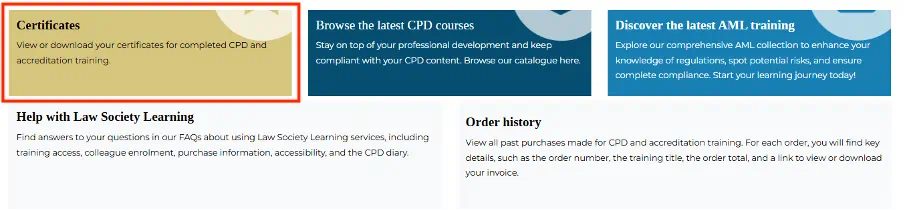
Select ‘certificates’ to view your list of certificates.
You can download a certificate by clicking ‘more info’ then ‘download’.

Select one of the dials to filter based on the learning status. You can filter by ‘upcoming’, ‘not started’ or ‘completed’ learning.
Once you’ve selected a status dial, you will then be able to filter by the type of product. For example, ‘online course’ or ’accreditation’.

Deselect the status dial to see all your learning activities.

If you’ve enrolled onto a live exam, our accreditations team will email you joining instructions and any pre-exam materials one week before the exam.
If you have any questions about the exam, email exams@lawsociety.org.uk.
If you made the order yourself, you may have accidentally selected ‘buy for a colleague’ when purchasing.
Check your order history and select ‘enrol colleagues’ to assign the item(s) to your own account.
See our guide on how to use the ‘enrol colleagues' function (PDF 335 KB).

For the best learning experience, we recommend completing your training online using the Law Society Learning platform.
You will be able to revisit each training module online after you’ve completed them. This will not affect your course grade.
If you require transcripts, read our accessibility info.
After your order has been completed, you will receive an email containing your multi-pass code. You can then share this with your colleagues.
If you do not receive this email, contact us and quote your order number.
All our online courses are Digital Accessibility Centre (DAC) compliant and have been designed to be compatible with screen readers.
If you would like to request a course transcript, use our online form to contact us.
Webinars and virtual classroom sessions are delivered through Microsoft Teams, which has built-in closed captioning.
Our video content will also contain captions.
If you're sitting an exam and require reasonable adjustments, email exams@lawsociety.org.uk.
Enrolling colleagues
Download our guide on enrolling colleagues (PDF 335 KB).
The enrolment form lists the names of solicitors who are registered with the Solicitors Regulation Authority (SRA) as working at your firm.
If you need to enrol someone who is not on this list, click the ‘add colleague’ button.
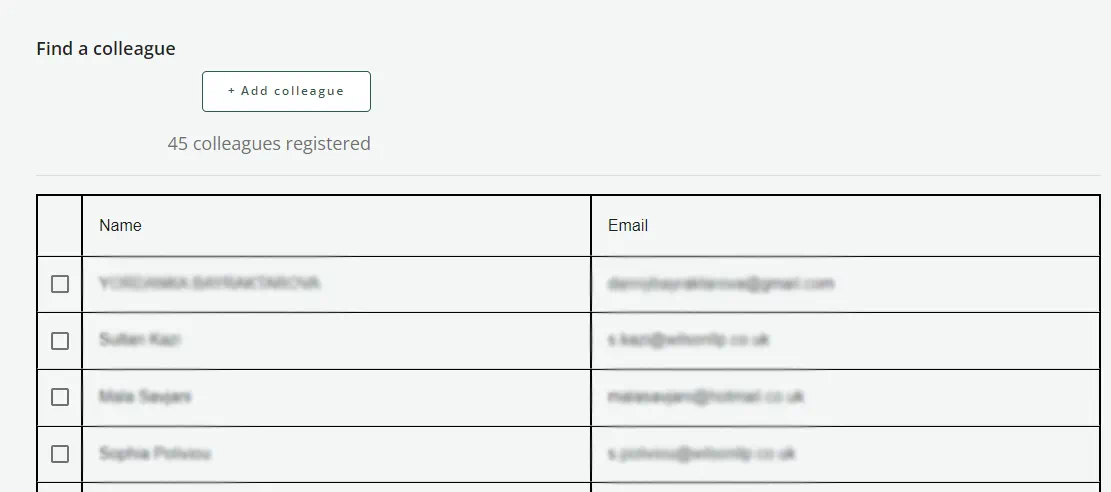
Once you have added the name and email address of the colleague you wish to enrol, their name will appear on the enrolee list on the right of the page.
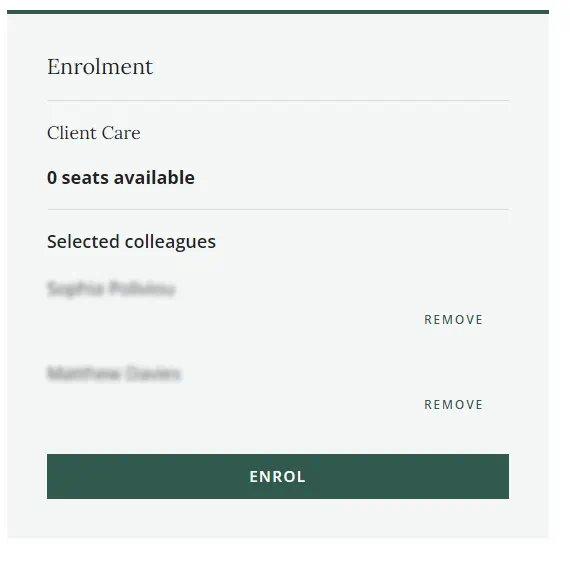
If any names in your firm’s list appear to be incorrect, contact the SRA to get these updated.
You can enrol your colleagues in stages.
To enrol more colleagues, return to your order history and select ‘enrol colleagues’ again to allocate your remaining seats.
Your colleagues will receive an automated notification email with instructions on how to start their learning.
To access their items, they will need a Law Society Learning account linked to that email address.
You can remove colleagues from your list before you select the ‘enrol’ button.
If you’ve already completed the enrolment, contact us and provide the:
- order number
- name and email address of the colleague you wish to be removed
We will need to enrol your colleagues on your behalf.
Contact us and provide the:
- order number
- name and email address of the colleague you wish to enrol
Make sure all your colleagues are registered at Law Society Learning first.
Purchase information
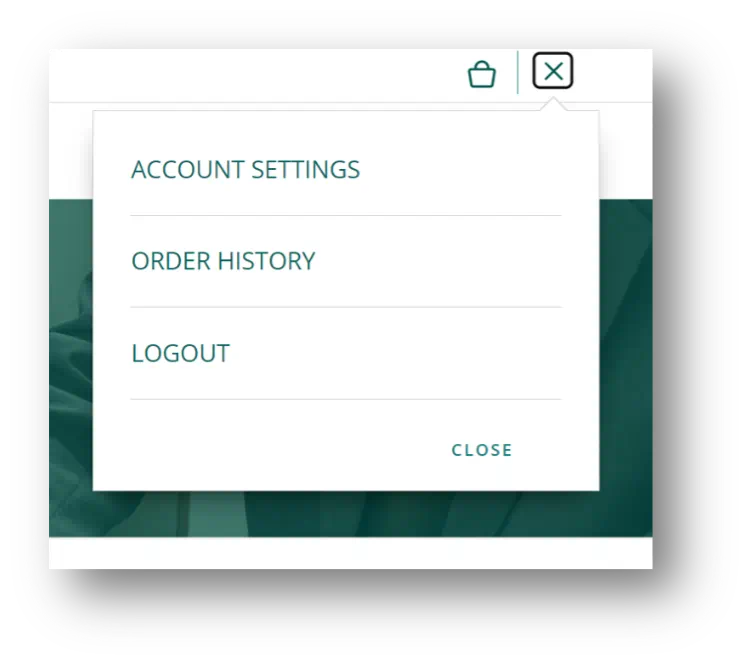
Log into Law Society Learning and select the three dots in the top right corner next to the basket icon.
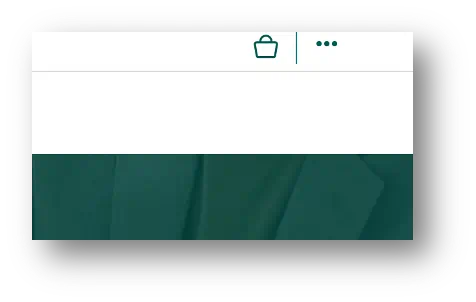
The order history option will appear in the drop-down menu.
Your VAT invoice will be sent to you within three working days of purchase.
If you have not received your invoice within this timeframe, check your spam filter.
If you require a copy or any amendments to be made to an invoice, you can request these using our contact us form, quoting your order number and any changes required.
You will receive an automated email after you place your order with details on how to make payment.
Your training will be released after we've received and allocated your payment. Allow up to 10 working days for payments to be allocated.
To avoid delays in allocating, quote the order number and/or invoice number when making a payment.
CPD diary
Log into Law Society Learning and select the ‘CPD diary’ tab.
The CPD diary is a benefit for Law Society members with an SRA ID.
If you cannot see the ‘CPD diary’ tab in your My LS account, this indicates your account isn’t linked to a membership.
Review your My LS account and make sure it’s connected to the email address linked with your mySRA account.
Activities completed on Law Society Learning will show automatically in your CPD diary.
To add reflections or manually record other activities, select the ‘Add activity’ button and fill in the details of your activity, such as the:
- title
- date
- type
- description
- learning outcomes
Select the ‘Add reflection’ button and write a reflective note about your activity, such as:
- what you learned
- how it improved your practice
- what challenges you faced
- what actions you will take next
Select the ‘Save’ button to save your activity and reflection.
Consistent reflection is a critical part of being a successful lifelong learner.
It shows that practitioners are committed to self-monitoring and assessing how experiences interact with more formal learning to produce informed and compliant practitioners.
Ongoing reflective practice demonstrates how knowledge changes across a career.
It can also help individuals demonstrate how they have incorporated these changes into their practice.
Think of it as an ongoing conversation with yourself where you think about:
- how things have gone
- what new things you have learnt, and
- how you'll use this new knowledge to inform your professional development in future
For useful tips, see the SRA’s reflect and identify information.
To view your CPD activities and reflections in your CPD diary:
- select the ‘View’ button to see a list of all your activities and reflections in the CPD diary
- filter and sort your activities and reflections by criteria, such as date, type or category
- select any activity or reflection to view its details and add further reflections
You can also delete any activity or reflection you no longer want to keep.
To generate, share and print reports from the CPD diary, select the ‘Export’ button and the type of export you need.
You can choose either Excel or PDF format to export your report.
For filtered reports, apply the filters you would like to view first, then select the ‘Export’ button and the type of export you require.
You can download each individual activity if you require more information about each piece of evidence.
To share your CPD activities, you will need to download the report first and then share it with the person you wish to.
As the professional body for solicitors, we provide members with a way to capture, reflect on and play their continuing professional development (CPD).
This is not limited to Solicitors Regulation Authority (SRA) requirements only.
Solicitors can use the CPD diary for the purpose of SRA continuing competence and practising certificate renewals, as well as for individual learning and development.
Whether mandated or not, CPD is considered best practice within any professional services space.
Stay competitive and compliant at each stage of your career by logging your learning and development activity with your CPD diary.
The SRA's guidance about what activities can be used for continuing competence puts it in the hands of individual practitioners.
Its FAQs about continuing competence state: “you decide which activities will help you to deliver a proper standard of service”.
Events
We offer in-person, online and hybrid events, including conferences and admissions ceremonies.
Find answers to the most frequently asked questions about booking and attending our events.
We aim to respond to all queries within five working days, but for a quicker resolution, we encourage you to check if your query is covered below.
Read our terms and conditions for events.
Booking process
You must have a My LS account to book an event.
Create a My LS account for free whether you are a solicitor or not.
If you are a solicitor, make sure you use the same email address as your Solicitors Regulation Authority (SRA) record or verify your account to link these.
When you log into your My LS account, you should see a prompt to verify your account by entering your SRA-registered email address.
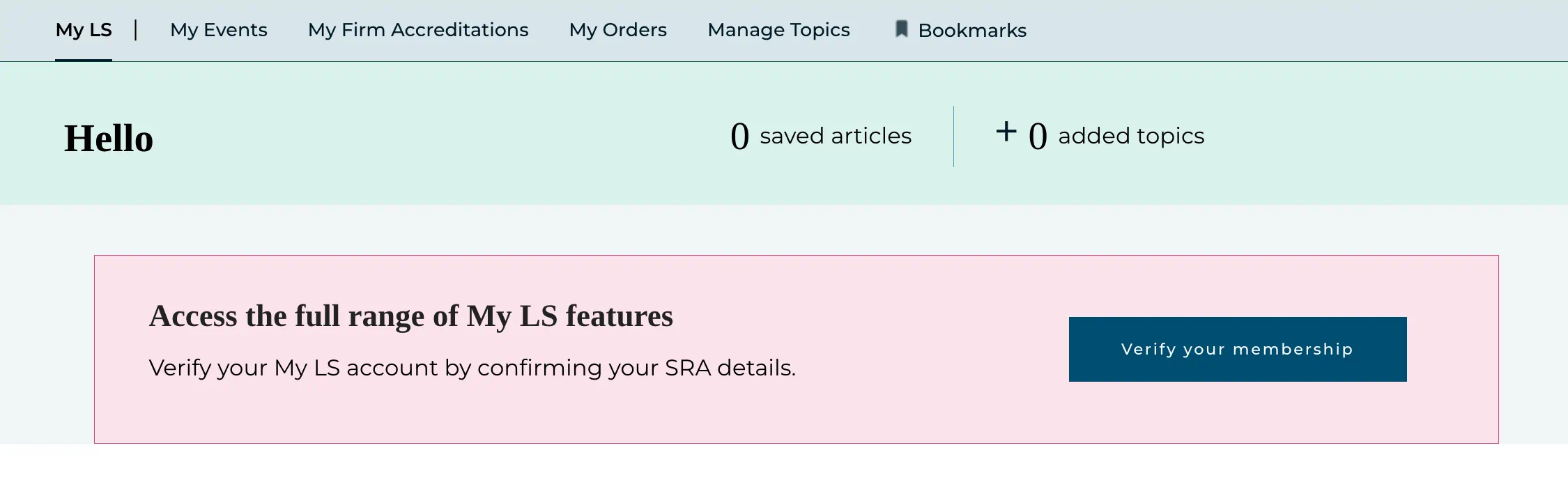
If this prompt does not appear, click ‘My account’ on the top right of the website and select ‘Account settings’:
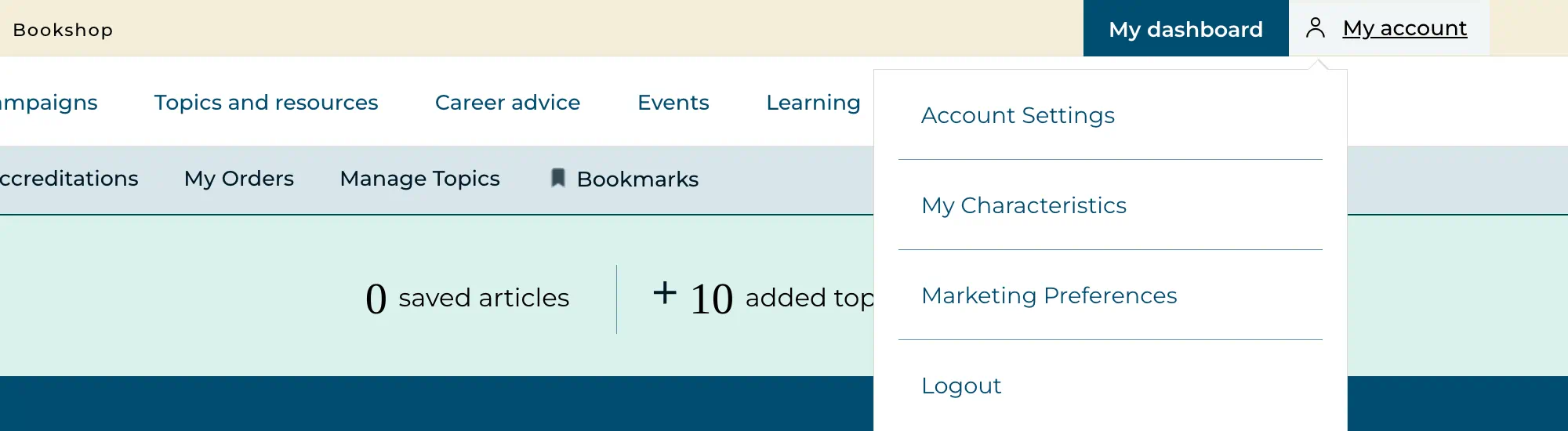
Under ‘Personal details’, edit your role to ‘Solicitor’ under ‘Job’:
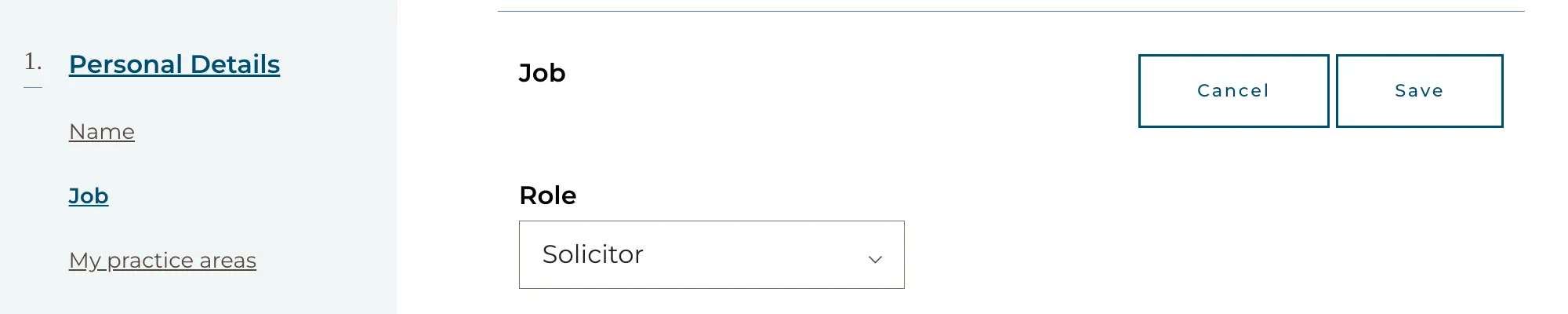
Save and refresh the page. You should now see the option to ‘Verify your membership’ at the top of the page:
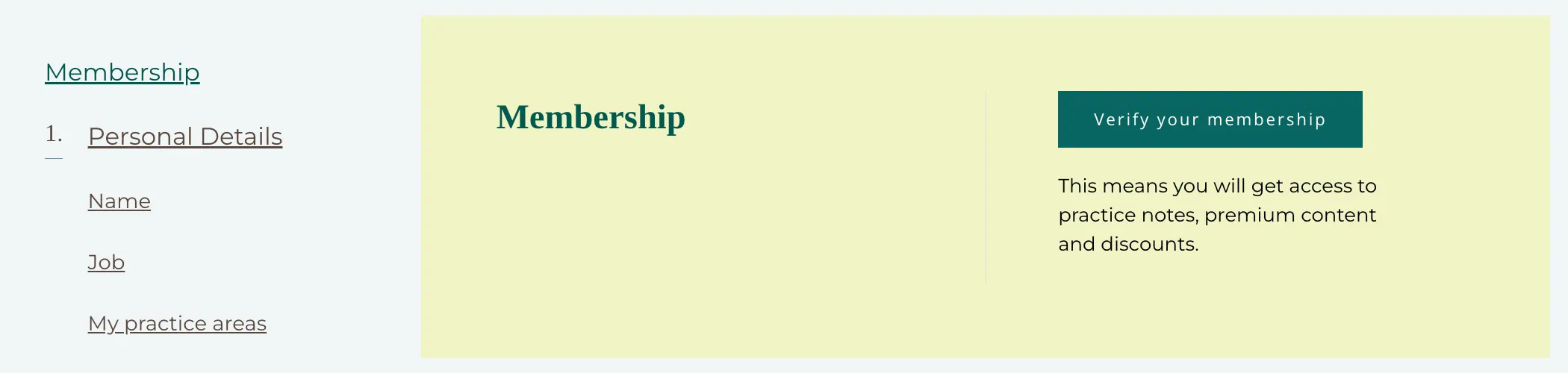
You will be asked to confirm that you are registered with the SRA and to provide your details.
All bookings must be made through the website, including payments by BACs.
If you are experiencing technical difficulties, refer to the troubleshooting questions.
Once the booking page is closed or the event is shown as fully booked, we are unable to accommodate any further bookings.
Discounts and payments
At the payment stage, you will be offered the option to pay by BACS/bank transfer.
This will generate an invoice for payment, which will be sent by email.
This payment option will remain open until 10 working days before the event.
The BACs payment option closes 10 working days before the event.
Only card payments will be accepted after this point.
For admissions ceremonies, only card payments are accepted.
We cannot take American Express (AMEX) payments.
You can use a different card or raise an invoice during the online booking process.
It will take at least 24 hours after buying a Section membership for the discount to apply to a ticket price.
Discounts will automatically apply to eligible, verified My LS accounts.
Standard non-member ticket pricing will apply. Only members of the Law Society of England and Wales qualify for the membership discount.
You can sign up for a Section membership. Learn more about Section membership
You must be logged into your My LS account.
Once you have selected the tickets, you will be asked if the ticket is for you or somebody else.
Follow the steps below to add the attendee’s details:
If the person is SRA regulated
Enter the SRA ID of their organisation in the search box and select their name from the list.
If it is a larger organisation, you may need to enter the SRA ID for the office or branch they are associated with.
The discount should now automatically apply.
If the person does not appear on the list, try entering the SRA ID of the office or branch the person is associated with.
Search our Find a Solicitor website to retrieve the SRA ID.
If they still do not appear in the list, make sure their employment information is correct with the SRA.
If the person is not SRA regulated
Use the manual search function and enter the first name, last name and email address that matches the My LS account linked to their membership.
Do not create a My LS account in another person’s name to buy their ticket.
This creates duplicate records, which can prevent the successful, automatic application of any relevant discounts.
For further assistance, contact our Support Centre.
Booking for colleagues and organisations
You must be logged into your My LS account to book an event.
Once you have selected the tickets, you will be asked if the ticket is for you or somebody else.
Follow the steps below to add the attendee’s details:
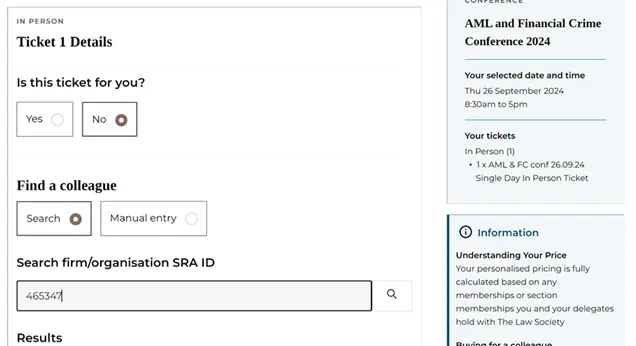
If the person is SRA regulated
Enter the SRA ID of their organisation in the search box and select their name from the list.
If it is a larger organisation, you may need to enter the SRA ID for the office or branch they are associated with.
Any discounts should now automatically apply.
If the person does appear on the list, try entering the SRA ID of the office or branch the person is associated with.
Search our Find a Solicitor website to retrieve the SRA ID.
If they still do not appear in the list, confirm their employment information is correct with the SRA.
If the person is not SRA regulated
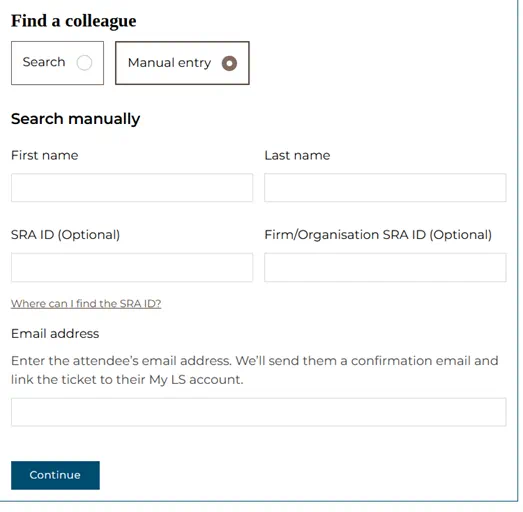
Use the manual search function and enter the first name, last name and email address that matches the My LS account linked to their membership.
Do not create a My LS account in another person’s name to buy their ticket.
This creates duplicate records, which can prevent the successful, automatic application of any relevant discounts.
For further assistance, contact our Support Centre.
We obtain this data from the Solicitors Regulation Authority (SRA).
If there is incorrect data displaying, you will need to contact the SRA to amend this.
Contact our Support Centre with details of the replacement attendee ahead of the event.
An additional payment will be required if the replacement attendee is not eligible for the original booking rate or category.
Troubleshooting technical issues
Try navigating to the event from the events page of our website, rather than from a direct link.
If you still see an error message, clear your internet browsing data and cache.
These steps will be different for each browser.
If you experience a technical issue:
- use the ‘Back’ button to return to the payment stage, then proceed once more
- refresh the page, log out of My LS and then log back in
- clear your browsing data
- try booking using a private window or alternative browser
Make sure there are no virtual private networks (VPNs) or other software active while booking, as this can disrupt the smooth operation of the website.
Try booking the tickets separately, as one of the multiple tickets may be causing an issue with the booking process.
If a single ticket is preventing the entire booking, you can proceed without that ticket and then contact the Support Centre with details.
Still not working? Contact our Support Centre and include:
- the steps you’ve tried
- a screenshot showing any error messages
- the website address (URL) you were using
- the date and time you experienced the issue
This information will help us investigate and resolve your problem.
Preparing for your event
Follow the steps in your confirmation email to share additional details including job title, dietary and access information.
You will also receive an email reminder before the event.
All pre-event emails will be sent directly to the attendees.
Check that these have not been blocked by your organisation’s spam filter.
Event emails will come from the email address: no-reply@mail.lawsociety.org.uk
You will not be provided with a physical ticket for our events.
When you arrive at an in-person event, give your name to our events team.
On the day of the event, a link to join will be available in your My LS profile.
You will also be emailed a direct link 48 hours and again one hour before the event.
Event emails will be sent from no-reply@mail.lawsociety.org.uk.
Slides and supporting materials will be uploaded to the mobile app for conferences.
For all other events, these resources will be shared via a post-event email within two working days.
In rare cases, speakers may be unable to provide their slides.
Most of our online events are recorded.
Make sure you register for the event to receive the recording after the event.
Recordings and any post-event materials are provided within two working days of online events.
For hybrid conferences, this will take up to 10 working days.
Your booking confirmation email will include a link to share your details.
You will have the option to provide your dietary and/or access requirements.
Cancellations, refunds and transfers
No refunds will be given if you cancel your booking within 10 working days of the date of the ceremony (exclusion window). Exceptions cannot be made.
If we receive notice of cancellation in writing before the start of the exclusion window, you will be issued with a refund of your registration fee, less an administration charge of 20% of the order price.
Cancellations must be made in writing using our online contact us form.
Select ‘question’ and ‘Law Society events’ when submitting.
Use the email address associated with your booking and provide your name, order number, ceremony date and acknowledgement of the cancellation fee as outlined in our terms and conditions.
The original ticket holder or purchaser must contact our Support Centre and provide the order number and name of the event.
Due to venue capacity, it may not be possible to transfer your booking to in-person.
There is no limit on attendees for online events.
Admissions ceremonies
We run ceremonies in every month of the year. New dates are released approximately two months in advance.
Ceremonies tend to book up fast. If a date no longer appears on this page, it is fully booked.
The Law Society is located at 113 Chancery Lane, London, WC2A 1PL.
Our standard admission ceremony times are:
12.45pm: registration opens
2.45pm: last admittance
3pm: ceremony
4pm: drinks reception
5pm: end of ceremony
On days when more than one ceremony is taking place, check the ceremony event page for more information.
We recommend business attire for admittees and smart casual for guests.
You must be admitted to the profession at the time of booking.
If you have recently been admitted as a solicitor, allow up to 24 hours after appearing on the Solicitors Regulation Authority (SRA) register.
Log in or register with My LS to book your admission ceremony.
You need to verify your My LS account to complete your booking.
Once you have verified and logged into your account, you will be able to book a ceremony date.
Our admissions ceremonies are open to all solicitors who have been admitted to the roll and qualified in England or Wales.
There is no time limit to attend. It doesn't matter if you qualified this year or years ago.
Foreign lawyers registered with the SRA are allowed to practice and operate in a different jurisdiction. However, they do not meet the criteria to attend our ceremonies.
You must be admitted before you book a ceremony place.
If you have not been admitted when you book, we reserve the right to cancel and refund your place minus an administration fee.
We do not provide tickets.
We operate a registration desk which is open from 12.45pm to 2.30pm.
We'll give your guests passes to wear for security purposes.
You must pre-book your gown at least one week ahead of your ceremony, through Marston Events. There is an additional cost of £15.
Alternatively, you are welcome to provide your own plain black gown.
You'll be sent information on how to book your gown approximately three weeks before the ceremony.
When you arrive, you will be directed to the Reading Room which is opposite the main entrance.
You will collect your guest passes and gown, and meet the photography team from Marston Events.
If you or a member of your party have any additional requirements, please let a member of the events team know when you arrive.
Feel free to take photographs either inside or outside the Law Society building.
You can also visit the Law Society library for a 10-minute tour of the library’s historical Grade 2* listed interior. No booking required.
You can purchase refreshments and a light lunch in our restaurant on the ground floor.
There is an unmanned cloakroom by the main entrance.
Any items are left at the owner’s risk.
If your ceremony is taking place before May 2026, your ceremony ticket will include two guest places. This will not appear on your booking confirmation.
Two further tickets can be purchased once you have completed the steps in your confirmation email.
If your ceremony is taking place from May 2026, your ceremony ticket will not include guest places.
Up to four guest tickets can be purchased once you have completed the steps in your confirmation email.
You will have the opportunity to purchase your guest tickets once you have completed the steps in your confirmation email.
Guest tickets will be charged at £45 + VAT.
Additional tickets are subject to availability.
Children under five can attend in addition to your guests. They will need to be sat on an adult's knee during the ceremony.
You must purchase tickets ahead of the ceremony.
Children are welcome at all admissions ceremony.
Those under five years of age can attend for free if sat on a paying guest’s lap.
Although children are welcome at all ceremonies, we also host family friendly ceremonies during school holidays, specially designed to welcome children and create a relaxed, celebratory atmosphere.
When you arrive, let a representative from Marston Events know that you would like a set of professional photographs.
Depending on demand, we will try to meet all enquiries where possible.
No. You will be presented with an admissions ceremony certificate at registration.
Cancellations must be made in writing using our online form.
Select ‘question’ and ‘Law Society events’ when submitting.
Use the email address associated with your booking and provide your name, order number, ceremony date and acknowledgement of the cancellation fee as outlined in our terms and conditions.
No refunds will be given if you cancel your booking within 10 working days of the date of the ceremony (exclusion window).
If we receive notice of cancellation in writing before the start of the exclusion window, you will be issued with a refund of your registration fee, less an administration charge of 20% of the order price.
Ceremony bookings cannot be transferred to a different date unless the event has been rescheduled by us.
If you’ve booked gown hire, merchandise or photography, you will need to contact Marston Events to cancel these.
You will also be subject to Marston’s terms and conditions.
Sponsorship and hire
Contact our sponsorship team with details of the event(s) you are interested in taking part in.
Visit the 113 Chancery Lane website to find out more about venue hire.
Accreditations
We award accreditations to solicitors and legal practices that meet the highest standards of technical expertise and client service.
We award individual accreditations to solicitors and legal professionals who meet the highest standards of technical expertise and client service in specific areas of law.
We grant firm accreditations to legal practices that uphold the utmost standards of technical expertise and client service within specific areas of law.
You can promote your accreditation with our range of printed materials, including certificates and window stickets.
You can appeal to our accreditation appeal panel if:
- your application for accreditation or re-accreditation is unsuccessful
- your accreditation is revoked
The process is different depending on the type of accreditation.
Need help?
If you haven’t found the answer to your question, you can use our online form to contact our Support Centre.
We aim to respond to all queries within five working days, but for a quicker resolution, we encourage you to check if your query is covered in the FAQs.
Our free and confidential helplines offer practical support to solicitors and their employees on professional and personal issues.
Law Society helplines are not available to the public.
Learn about common legal issues and how to find and use a solicitor with our resources for public visitors.
For help with legal research, see our guides on how to find legislation or trace past solicitors and law firms.
Personalise your membership
Sign up for the latest news, events and resources tailored to you and your practice